Welcome to Cookie Consent
TermsFeed Free Cookie Consent is a free cookie consent banner for the General Data Protection Regulation (GDPR), the ePrivacy Directive, and Google Consent Mode v2.
On this page
- Build Your Cookie Consent Banner
- How to Implement Cookie Consent in 5 Steps
- Cookie Consent Banner Screenshots
- Cookie Consent Video Tutorials
- Cookie Consent Levels and Categories
- How to Tag Your JavaScript Scripts
- How to Integrate Google Consent Mode v2
- How to Integrate Microsoft UET Consent Mode
- Cookie Consent vs. Privacy Consent
- Cookie Consent FAQs
- Cookie Consent Documentation
- Cookie Database
- Express (opt-in) or implied consent (opt-out)
- 4 consent banner layouts in a light or dark theme
- 36 languages with a language picker for visitors
- 4 cookie categories to load only the tagged scripts
- Google Consent Mode v2 + Microsoft UET Consent Mode
Build Your Cookie Consent Banner
Enter a name for the script (for example, Google Analytics), select its category (for example, Tracking and Performance), and paste the script code.
Copy your Cookie Consent code below.
Paste the code right after the opening <body> tag on every page.

How to Implement Cookie Consent in 5 Steps
Implement the Cookie Consent banner in 5 steps, from choosing your consent type to pasting the code on your website. The ePrivacy Directive and the General Data Protection Regulation (GDPR) require consent before non-essential cookies load, and Cookie Consent collects that consent.
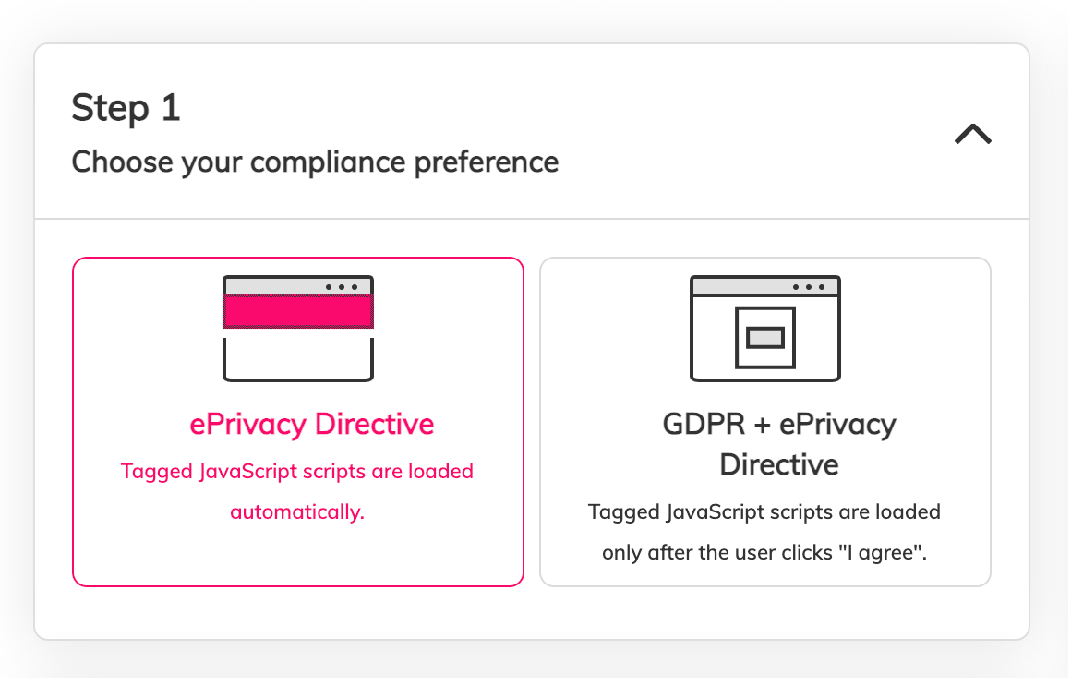
Step 1
Choose your compliance preferences
Choose the consent type for your website: ePrivacy Directive or GDPR + ePrivacy Directive. Start with the Cookie Consent builder.
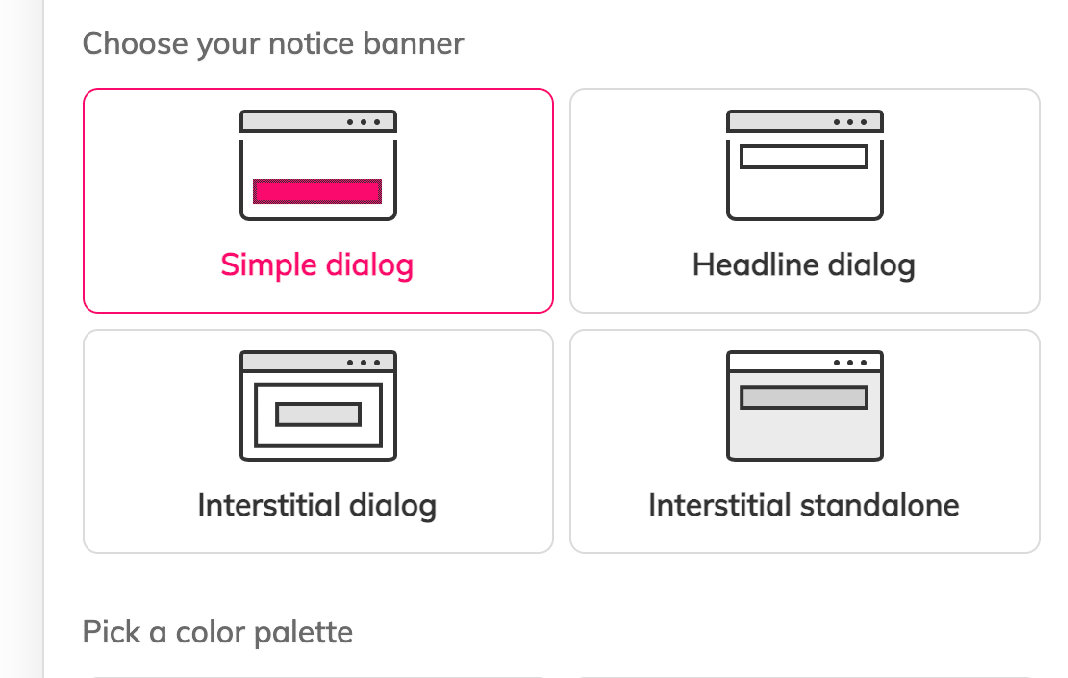
Step 2
Customize your Cookie Consent
Add your website name, then pick a consent banner layout, a color palette, and a default language.
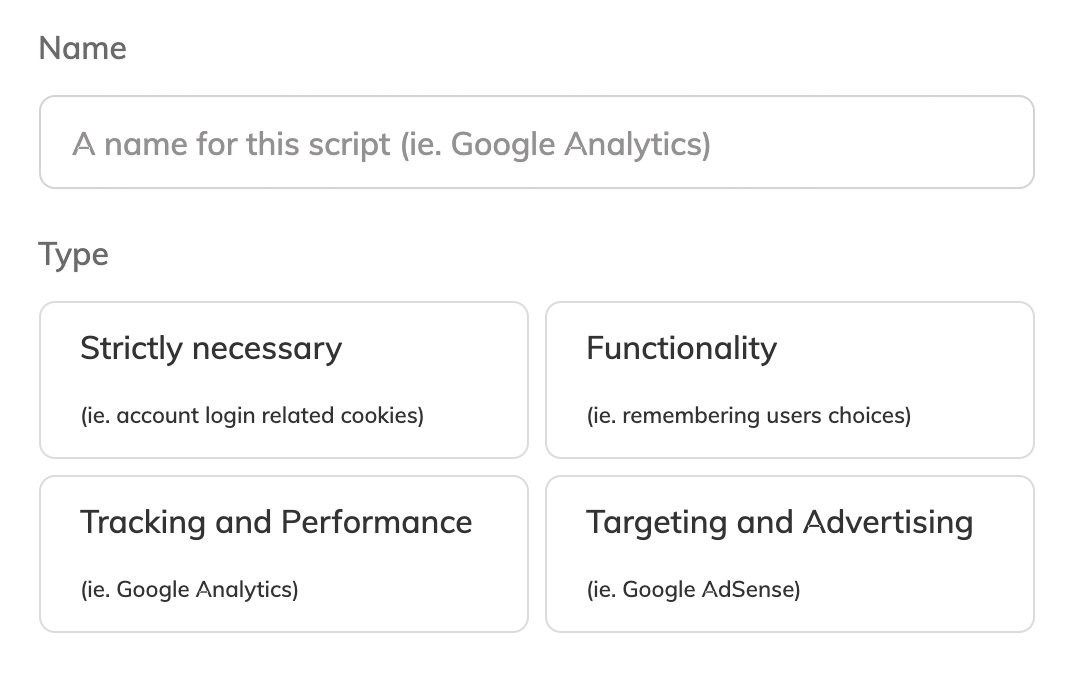
Step 3
Add your JavaScript scripts
Paste your JavaScript scripts into the Cookie Consent builder. To tag the scripts on your pages instead, follow How to Tag Your JavaScript Scripts.
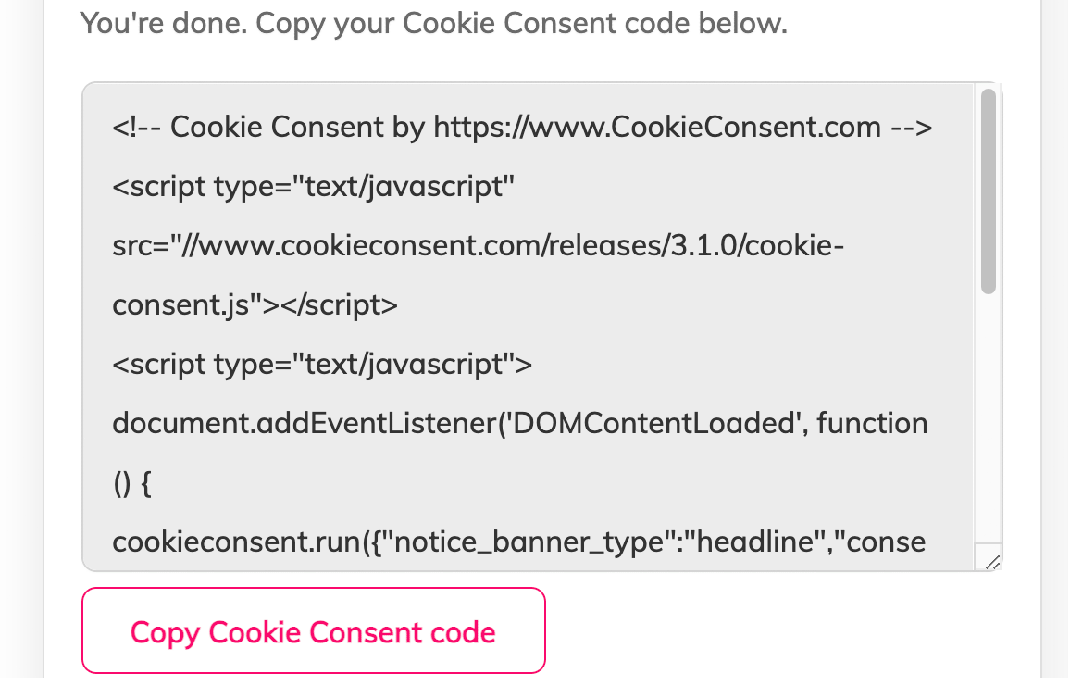
Step 4
Copy the generated Cookie Consent code
The builder generates the Cookie Consent code. Copy the code from Step 4 of the builder.
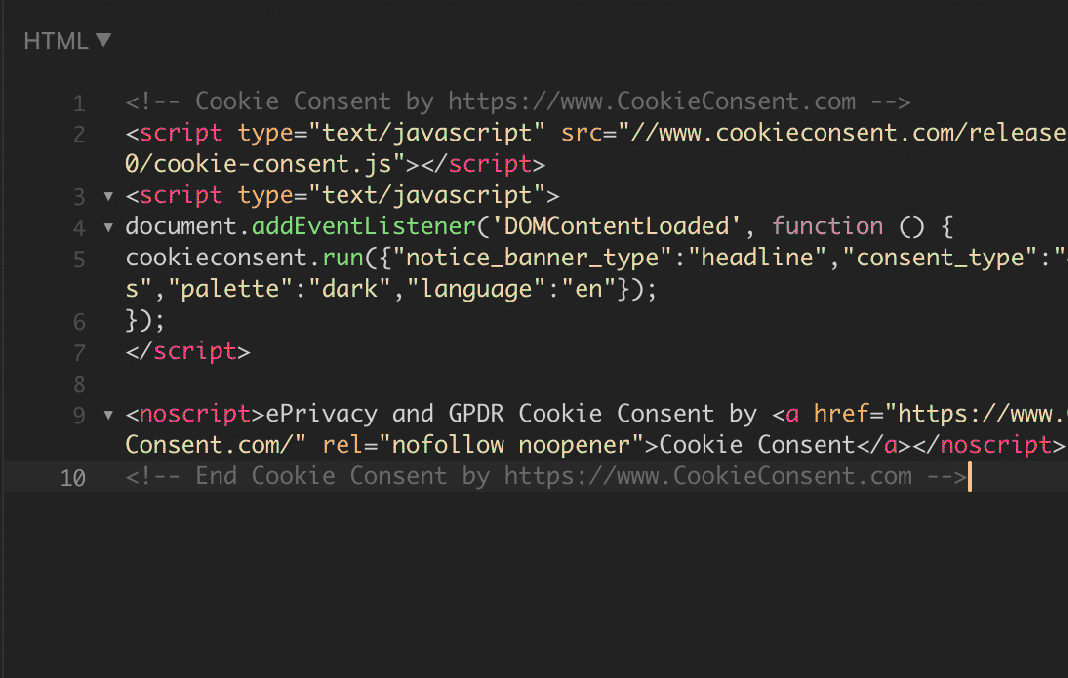
Step 5
Add your Cookie Consent code on your website
Paste the generated Cookie Consent code into the <body> section of every page on your website.
Cookie Consent Banner Screenshots
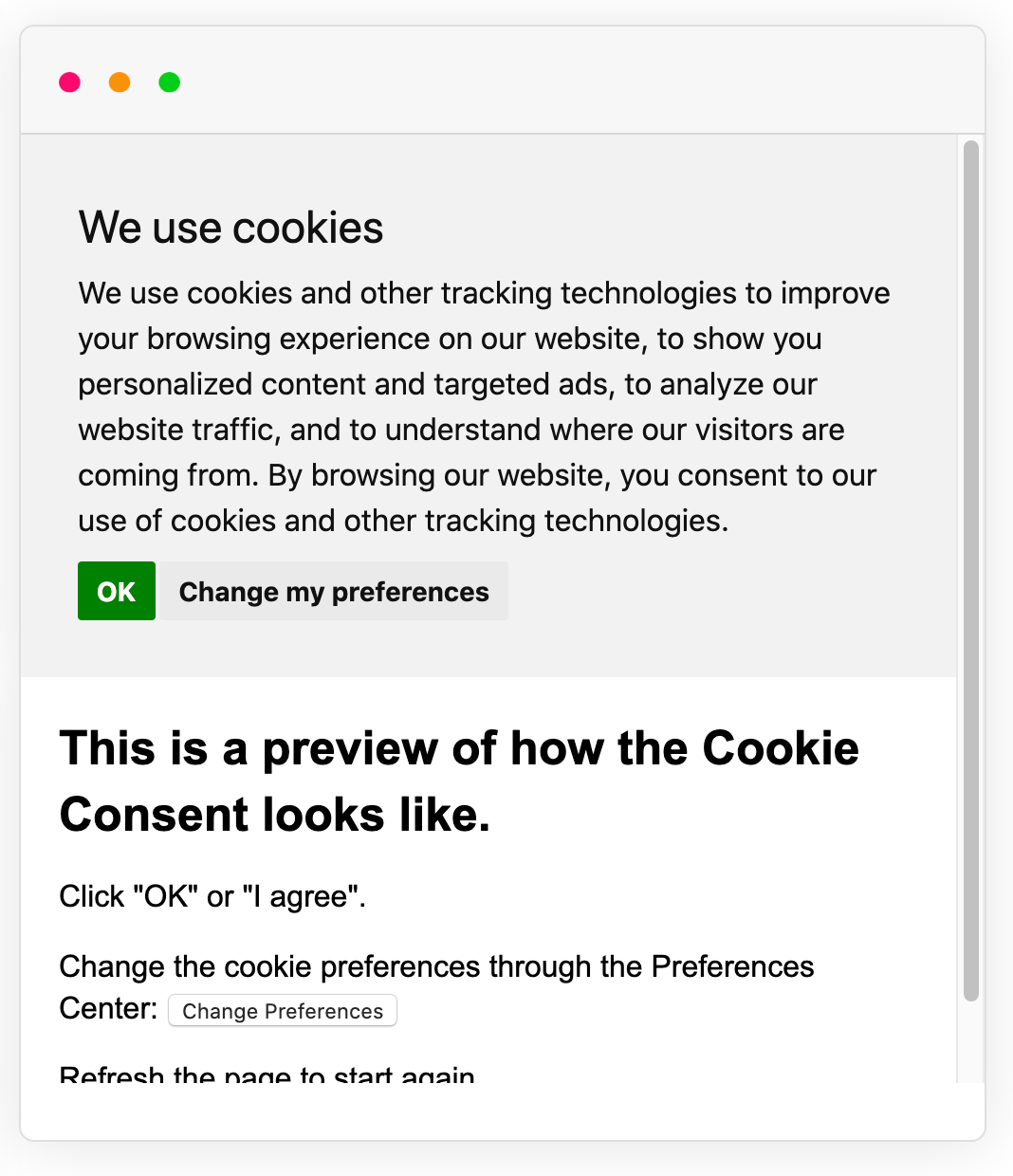
The Cookie Consent banner uses the ePrivacy Directive consent type.
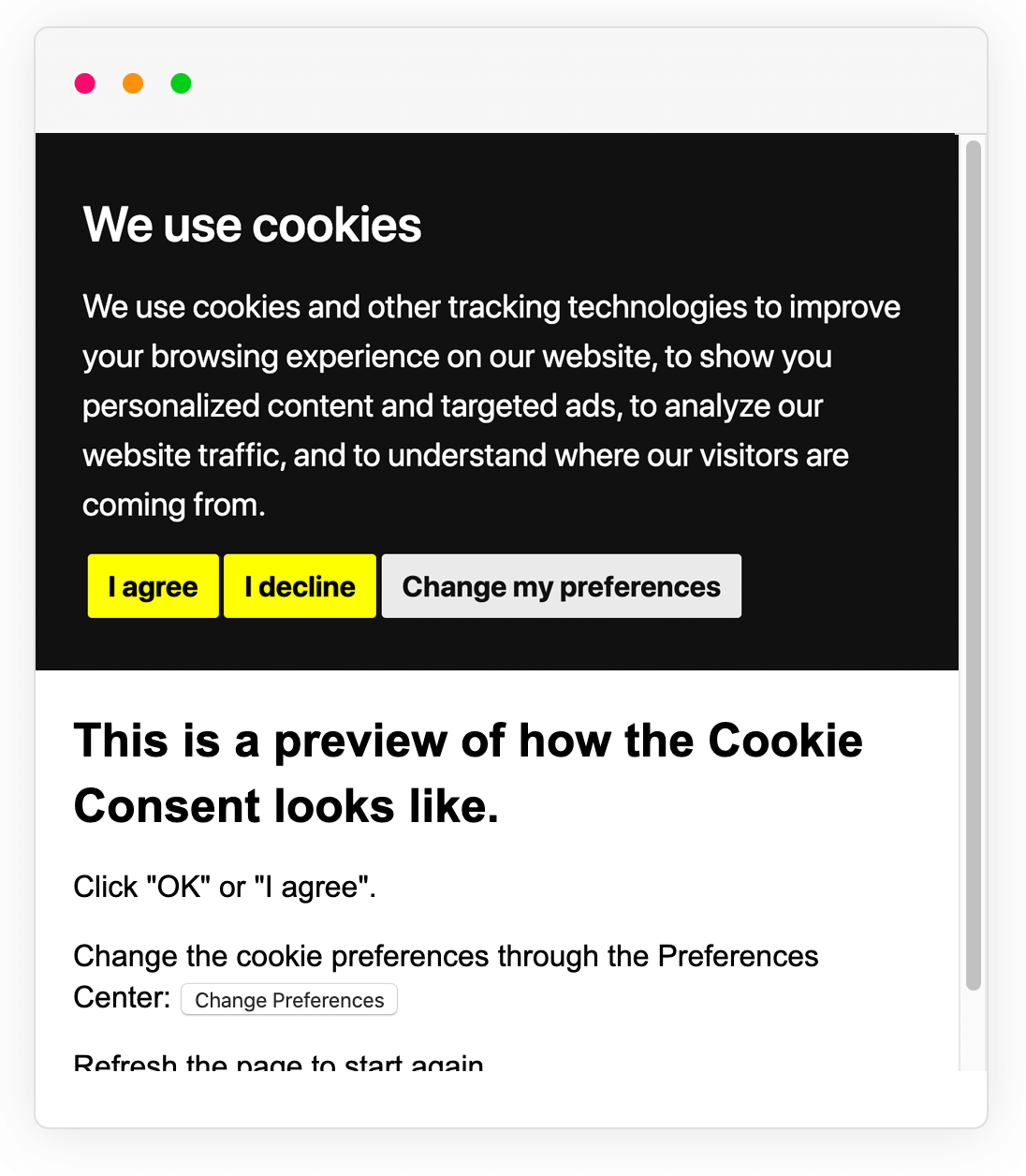
The Cookie Consent banner uses the GDPR + ePrivacy Directive consent type.
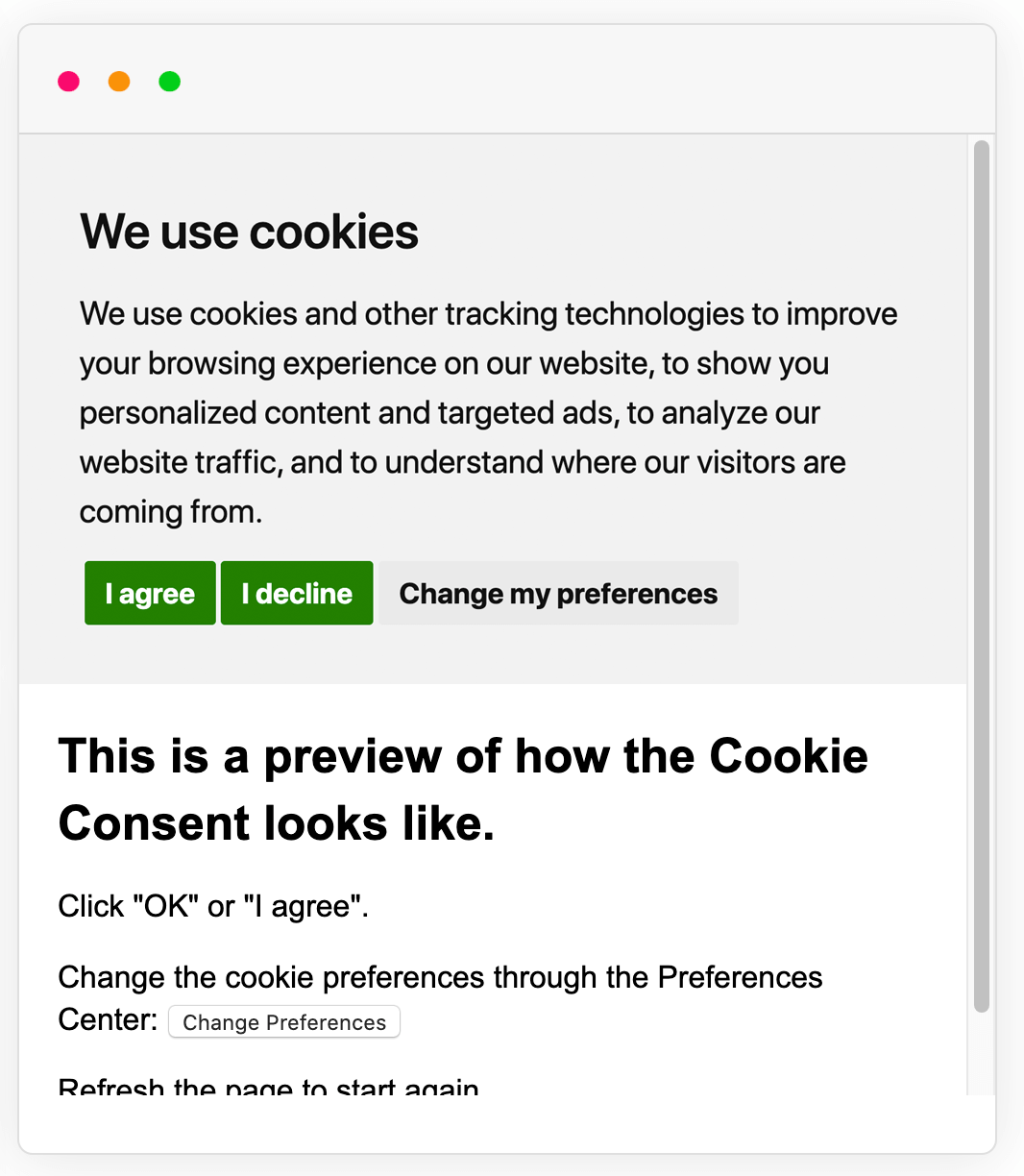
The Cookie Consent banner uses the dark color palette.
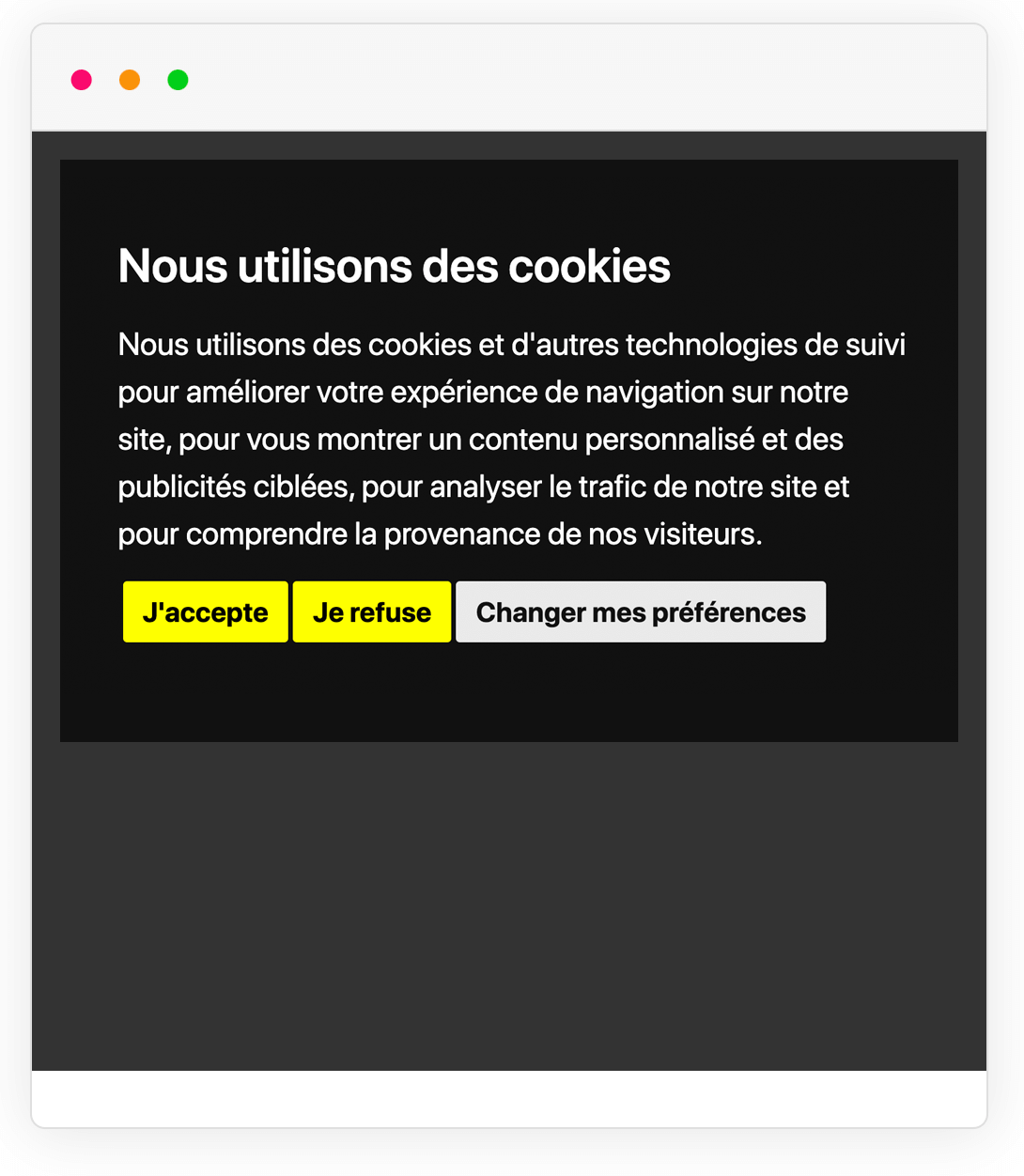
The Cookie Consent banner shows its text in another language.
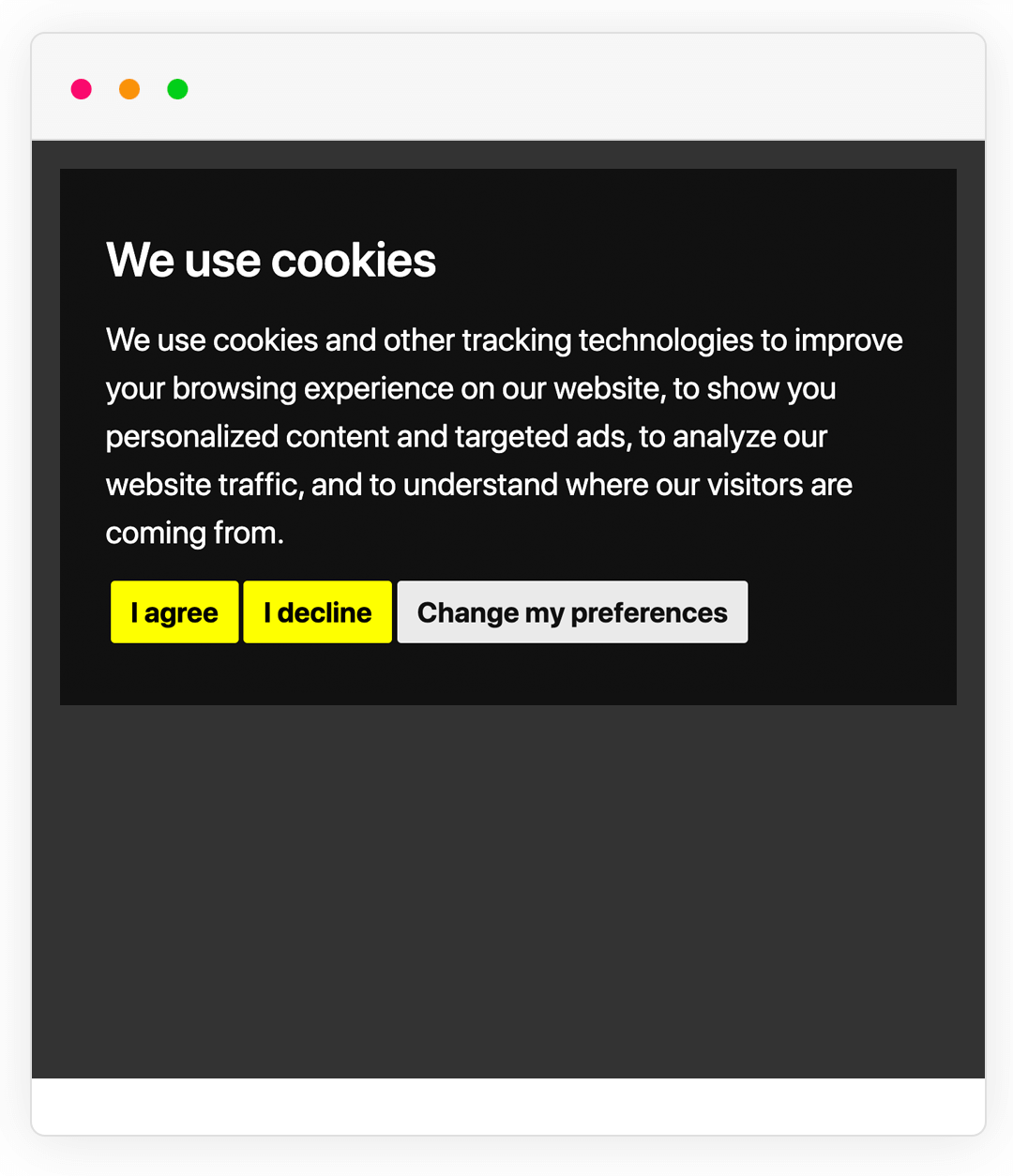
The Cookie Consent banner uses another layout.
Cookie Consent Video Tutorials
Watch how to add the free Cookie Consent banner to your website.
Watch how to integrate Google Consent Mode v2 with Cookie Consent.
Watch how to block scripts until the visitor consents, with Cookie Consent.
Watch how to add a button that opens the Cookie Consent Preferences Center for visitors.
How to Tag Your JavaScript Scripts
Tag each script by changing type="text/javascript" to type="text/plain" and adding a data-cookie-consent attribute with its category. The browser skips a script with type="text/plain", and Cookie Consent runs the script once the visitor accepts its category.
Set the attribute to 1 of the 4 categories, for example data-cookie-consent="functionality".
The example below tags a login session script as strictly-necessary and a Google Analytics script as tracking.
<!-- Login Cookies -->
<script type="text/plain" data-cookie-consent="strictly-necessary" src="/js/login-session.js"></script>

<!-- Google Analytics -->
<script type="text/plain" data-cookie-consent="tracking">
(function(i,s,o,g,r,a,m){i['GoogleAnalyticsObject']=r;i[r]=i[r]||function(){
(i[r].q=i[r].q||[]).push(arguments)},i[r].l=1*new Date();a=s.createElement(o),
m=s.getElementsByTagName(o)[0];a.async=1;a.src=g;m.parentNode.insertBefore(a,m)
})(window,document,'script','//www.google-analytics.com/analytics.js','ga');
ga('create', GOOGLE_PROPERTY_ID_GOES_HERE, 'auto');
ga('send', 'pageview');
</script>
How to Integrate Google Consent Mode v2
Integrate Google Consent Mode v2 with Cookie Consent in 3 steps: deny consent by default, load Google Analytics, and update consent from a Cookie Consent callback. Google Consent Mode v2 tells Google tags (Google Analytics 4, Google Ads, Google Tag Manager) which storage the visitor allows, and Google tags adjust what they store.
Cookie Consent sends the choice of the visitor to Google through the scripts_specific_loaded callback, which runs once the visitor accepts a category and on every later page load.
Here is how to set it up. Firstly, set the default consent states to denied before any Google tag loads.
<script>
window.dataLayer = window.dataLayer || [];
function gtag(){
	dataLayer.push(arguments);
}
gtag('consent', 'default', {
	'ad_storage': 'denied',
	'ad_user_data': 'denied',
	'ad_personalization': 'denied',
	'analytics_storage': 'denied'
});
</script>
Secondly, load Google Analytics on your page without a Cookie Consent category. Google Analytics follows the denied consent states until the visitor accepts.
<script async src="https://www.googletagmanager.com/gtag/js?id=TAG_ID"></script>
<script>
	window.dataLayer = window.dataLayer || [];
	function gtag(){dataLayer.push(arguments);}

	gtag('js', new Date());
	gtag('config', 'TAG_ID');
</script>
Thirdly, add a callbacks parameter to your Cookie Consent config code. The scripts_specific_loaded callback grants analytics storage once the visitor accepts the tracking category and ad storage once the visitor accepts the targeting category, and callbacks_force runs it on pages with no tagged scripts.
"callbacks": {
	"scripts_specific_loaded": (level) => {
		switch(level) {
			case 'tracking':
				gtag('consent', 'update', {
					'analytics_storage': 'granted'
				});
				break;
			case 'targeting':
				gtag('consent', 'update', {
					'ad_storage': 'granted',
					'ad_user_data': 'granted',
					'ad_personalization': 'granted'
				});
				break;
		}
	}
},
"callbacks_force": true
How to Integrate Microsoft UET Consent Mode
Integrate Microsoft UET Consent Mode with Cookie Consent in 3 steps: load the UET tag, deny consent by default, and update consent from a Cookie Consent callback. Microsoft Universal Event Tracking (UET) Consent Mode tells Microsoft Advertising whether the visitor allows ad storage.
Cookie Consent sends the choice of the visitor to Microsoft through the scripts_specific_loaded callback, which runs once the visitor accepts a category and on every later page load.
Here is how to set it up. Firstly, load the Microsoft UET script.
<script>
(function(w,d,t,r,u){var f,n,i;w[u]=w[u]||[],f=function(){var o={ti:"TAG_ID", enableAutoSpaTracking: true};o.q=w[u],w[u]=new UET(o),w[u].push("pageLoad")},n=d.createElement(t),n.src=r,n.async=1,n.onload=n.onreadystatechange=function(){var s=this.readyState;s&&s!=="loaded"&&s!=="complete"||(f(),n.onload=n.onreadystatechange=null)},i=d.getElementsByTagName(t)[0],i.parentNode.insertBefore(n,i)})(window,document,"script","//bat.bing.com/bat.js","uetq");
</script>
Secondly, set the default consent state to denied.
<script>
window.uetq = window.uetq || [];
window.uetq.push('consent', 'default', {
    'ad_storage': 'denied'
});
</script>
Thirdly, add a callbacks parameter to your Cookie Consent config code. The scripts_specific_loaded callback updates the ad_storage state once the visitor accepts the targeting category, and callbacks_force runs it on pages with no tagged scripts.
"callbacks": {
	"scripts_specific_loaded": (level) => {
		switch(level) {
			case 'targeting':
				window.uetq = window.uetq || [];
				window.uetq.push('consent', 'update', {
						'ad_storage': 'granted'
				});
				break;
		}
	}
},
"callbacks_force": true
Cookie Consent vs. Privacy Consent
The free Cookie Consent banner you build on this page covers a website that asks every visitor for consent in the same way. TermsFeed also offers Privacy Consent, a paid consent platform for businesses that need consent by location and a consent log.
Cookie Consent
Free · self-configured JavaScript snippet
Cookie Consent suits small websites that use a single consent model for every visitor and tag their own scripts.
Privacy Consent
Premium plan · from $10/mo · managed in TermsFeed
Privacy Consent suits businesses with visitors in the EU, the UK, or US states with privacy laws, and businesses that need proof of consent.
| Cookie Consent | Privacy Consent | |
|---|---|---|
| Setup and changes | You edit the settings in the snippet and paste the code again after every change. |
You paste a single script tag once, and every change you make in the TermsFeed app goes live on your website. |
| Consent model | You pick a single model for every visitor: express consent (opt-in) or implied consent (opt-out). |
Privacy Consent asks for opt-in consent in the EU, the European Economic Area (EEA), the UK, Switzerland, and certain US states and Canadian provinces, and uses opt-out elsewhere. |
| Global Privacy Control | Cookie Consent ignores the Global Privacy Control (GPC) signal. |
Privacy Consent honors GPC in every region, overrides an earlier consent, and records the opt-out in the consent log. |
| “Do Not Sell or Share” opt-out | Cookie Consent has no opt-out for the sale or sharing of personal information. |
Privacy Consent shows US visitors a “Do Not Sell or Share” section, a link in the consent banner, and a floating button. |
| Controlling scripts | You tag each script on your pages with the data-cookie-consent attribute. |
Privacy Consent runs the vendor tags of a vendor only after the visitor accepts that vendor. |
| Embedded content | Cookie Consent has no blocking for embedded videos, maps, or widgets. |
Embed banners hold back videos, maps, and widgets until the visitor accepts the vendor. |
| Proof of consent | Cookie Consent keeps no record, and the choice stays only in the cookies of the visitor. |
Privacy Consent records every answer with a consent ID in the consent log, and paid plans add CSV export. |
| Languages | Cookie Consent supports 36 languages and shows a language picker to the visitor. |
Privacy Consent supports 21 languages and picks the language from the browser and the location of the visitor. |
How Privacy Consent Controls Vendors and Embedded Content
Every third-party tool on your website is a vendor in Privacy Consent, from analytics to chat. You add each vendor once in the TermsFeed app, and Privacy Consent runs it only after the visitor accepts.
An embed banner takes the place of the video, and nothing loads from YouTube.
A click on I Agree or Accept this vendor loads the video in place, and the answer goes to the consent log.
Choose Cookie Consent for a Free Consent Banner
Cookie Consent fits a website that needs a free consent banner with a single consent model for every visitor. You tag the scripts yourself, and Cookie Consent keeps no record of who consented.
Build your free Cookie ConsentChoose Privacy Consent to Prove Consent
Privacy Consent fits a business with visitors in the EU, the UK, or US states with privacy laws. Privacy Consent honors GPC and “Do Not Sell or Share”, and the consent log keeps proof of every answer.
Try Privacy ConsentCookie Consent FAQs
What Is Cookie Consent?
TermsFeed Free Cookie Consent is a free cookie consent banner that asks visitors for consent before non-essential cookies load. Cookie Consent helps you meet the consent rules of the ePrivacy Directive and the General Data Protection Regulation (GDPR) on the website where you install it. Build your consent banner with the Cookie Consent builder.
Do I Need Cookie Consent?
Yes, you need Cookie Consent or another cookie consent banner if your website sets non-essential cookies for visitors in the EU or the UK. Firstly, the ePrivacy Directive and the UK Privacy and Electronic Communications Regulations (PECR) require consent before a website stores non-essential cookies on the device of a visitor. Secondly, analytics tools (Google Analytics, Hotjar, Microsoft Clarity) set non-essential cookies. Thirdly, advertising tools (Google Ads, Meta Pixel, Microsoft Advertising) set cookies that track visitors across websites.
Strictly necessary cookies, such as the login session cookie, need no consent. Tag those scripts as strictly-necessary, and Cookie Consent loads them on every page.
Is Cookie Consent Free?
Yes, Cookie Consent is free. Firstly, the builder and the generated code cost nothing. Secondly, Cookie Consent needs no account and no subscription. Thirdly, Cookie Consent sets no limit on page views, visitors, or websites.
How Can I Create a Cookie Consent Banner?
You can create a Cookie Consent banner with the 4 steps of the builder on this page. Step 1 sets the consent type. Step 2 sets your website name, the consent banner layout, the color palette, and the language. Step 3 adds your scripts, and Step 4 gives you the code to paste on your website. Start with the Cookie Consent builder.
How Can I Implement Cookie Consent?
You can implement Cookie Consent by pasting the generated code on every page and tagging your scripts with a category. Tag each script with type="text/plain" and a data-cookie-consent attribute set to strictly-necessary, functionality, tracking, or targeting. Copy a complete example from How to Tag Your JavaScript Scripts.
Does Cookie Consent Support Google Consent Mode v2?
Yes, Cookie Consent supports Google Consent Mode v2 through its callbacks. Firstly, you set every Google consent state to denied before Google tags load. Secondly, Google Analytics loads and follows the denied states until the visitor answers. Thirdly, the scripts_specific_loaded callback of Cookie Consent updates the consent states once the visitor accepts. Copy the full code from How to Integrate Google Consent Mode v2.
How Can I Edit the Text of the Cookie Consent Banner?
You can change which purposes the Cookie Consent banner lists with the notice_banner_purposes_levels parameter in the config code. The parameter sets which categories the consent banner text names as purposes and which tabs the Preferences Center shows. Set the parameter to an array of category IDs, for example ["strictly-necessary", "tracking"].
Does Cookie Consent Include a Consent Log?
No, Cookie Consent does not include a consent log. Firstly, Cookie Consent stores the choice only in cookies on the device of the visitor. Secondly, Cookie Consent sends no consent record to TermsFeed or to your server. Thirdly, the cookie_consent_user_consent_token cookie holds a random string that identifies the consent, and you store that string yourself to keep a record.
Set your own identifier with the user_consent_token parameter in the config code, for example "user_consent_token": "STRING_GOES_HERE".
TermsFeed Privacy Consent keeps a consent log of every answer with the country of the visitor, and paid plans export the log as CSV files. Keep proof of consent with Privacy Consent.
How Can I Use Cookie Consent Across Multiple Subdomains?
You can use Cookie Consent across the subdomains of a root domain with the cookie_domain parameter in the config code. Set the parameter to the root domain with a leading dot, for example "cookie_domain": ".example.com". Enter the exact root domain of your website, because the browser rejects the consent cookies for a domain that does not match, and Cookie Consent then asks again on every page.
How Can I Load Cookie Consent Only for EU (Europe) Visitors?
Cookie Consent has no location detection, so the Cookie Consent banner appears to every visitor. TermsFeed Privacy Consent detects the location of each visitor and asks for opt-in consent in the EU, the European Economic Area (EEA), the UK, and Switzerland. Privacy Consent asks every visitor for opt-in consent when your company is based in one of these regions.
Visitors in other regions see no consent banner, and Privacy Consent runs your vendors until the visitor opts out. Show the consent banner by location with Privacy Consent.
How Can I Open the Preferences Center in a Single-Page Application (SPA)?
You can open the Preferences Center in a single-page application (SPA) with the cookieconsent.openPreferencesCenter() method. Call the method from any button or link on your page, for example <button onclick="cookieconsent.openPreferencesCenter();">Open Preferences Center</button>.
Why Do I See Weird Characters in the Cookie Consent Banner in Other Languages?
Weird characters appear in the Cookie Consent banner because your HTML page has no meta charset tag. The browser then reads the translated text of the consent banner in the wrong character encoding, as the screenshot below shows.

Here is how to fix it. Firstly, add <meta charset="utf-8" /> in the head section of your pages. Secondly, add the generated Cookie Consent code in the body section. Thirdly, add charset="UTF-8" to the first line of the generated code, for example <script type="text/javascript" charset="UTF-8" src="//......
Save your pages in UTF-8 in your code editor, and confirm that your web server (Apache, nginx) sends the UTF-8 encoding.
Cookie Consent Documentation
This page covers the main Cookie Consent options. Read every Cookie Consent option and guide in the TermsFeed Cookie Consent documentation.
How to Install Cookie Consent
Install Cookie Consent in 2 steps. Firstly, generate the Cookie Consent code with the builder on this page. Secondly, paste the generated code right after the opening <body> tag or right before the closing </body> tag. Start with the Cookie Consent builder.
How to Make Cookie Consent Control Your Scripts
Cookie Consent controls only the scripts you tag, so tag every script that sets non-essential cookies. Here is how to tag a script. Firstly, change type="text/javascript" to type="text/plain" on the <script> tag, or add type="text/plain" to a script with no type. Secondly, add the category to the same <script> tag, for example data-cookie-consent="functionality".
The example below tags a login session script and a Google Analytics script.
<!-- Login Cookies -->
<script type="text/plain" data-cookie-consent="strictly-necessary" src="/js/login-session.js"></script>

<!-- Google Analytics -->
<script type="text/plain" data-cookie-consent="tracking">
(function(i,s,o,g,r,a,m){i['GoogleAnalyticsObject']=r;i[r]=i[r]||function(){
(i[r].q=i[r].q||[]).push(arguments)},i[r].l=1*new Date();a=s.createElement(o),
m=s.getElementsByTagName(o)[0];a.async=1;a.src=g;m.parentNode.insertBefore(a,m)
})(window,document,'script','//www.google-analytics.com/analytics.js','ga');
ga('create', GOOGLE_PROPERTY_ID_GOES_HERE, 'auto');
ga('send', 'pageview');
</script>
How to Style the Cookie Consent Banner With CSS
Style the Cookie Consent banner with your own CSS rules that override the built-in Cookie Consent CSS. Open the developer tools of your browser, inspect the element you want to change, and write a CSS rule for its class.
Add !important to each declaration, because the built-in CSS rule otherwise takes precedence. The rule below turns the title of the consent banner red.
.termsfeed-com---nb .cc-nb-title {
  color: red !important;
}
Cookie Consent JavaScript Methods
Cookie Consent has 2 JavaScript methods: run() and openPreferencesCenter().
| Name | Description |
|---|---|
|
|
The |
|
|
The |
Cookie Consent Configuration Options
Pass these configuration options to the cookieconsent.run() method.
| Name | Type | Default | Values | Description |
|---|---|---|---|---|
|
|
String |
|
|
|
|
|
String |
|
|
|
|
|
String |
|
Pick 1 of the 36 languages in Step 2 of the builder. |
|
|
|
String |
|
|
|
|
|
Boolean |
|
|
|
|
|
Boolean |
|
|
|
|
|
String |
|
|
|
|
|
Array |
|
|
|
|
|
Boolean |
|
|
|
|
|
Array |
|
|
The builder adds only |
|
|
String |
|
|
|
|
|
Boolean |
|
|
|
|
|
String |
|
|
The Preferences Center shows the link in the "More information" tab. The consent banner text shows the link only if |
|
|
String |
|
|
The consent banner text shows the link only if |
|
|
String |
|
|
Keep a consent log of every answer with TermsFeed Privacy Consent. |
|
|
String |
|
|
Leave |
|
|
Integer |
|
|
The default is 365 days (12 months), and the maximum is 400 days (about 13 months), the cookie lifetime cap that Chrome applies since Chrome 104 in August 2022. |
|
|
|
Cookie Consent supports 6 events.
With The example below logs every callback to the browser console. Pass function names instead of inline code to run your own functions. "callbacks": {
"scripts_specific_loaded": "my_function_for_scripts_specific_loaded"
}
Cookie Consent fires callbacks only on pages with tagged scripts. Set |
||
|
|
Boolean |
|
|
|
|
|
Boolean |
|
|
Turn it on to apply the saved choice again on every page, for example to update the Google Consent Mode v2 states from |